 ScreenBook.ai
The studio, control by control
Open http://127.0.0.1:4600 — screenbook serve redirects straight to the studio at
/screenbook/.
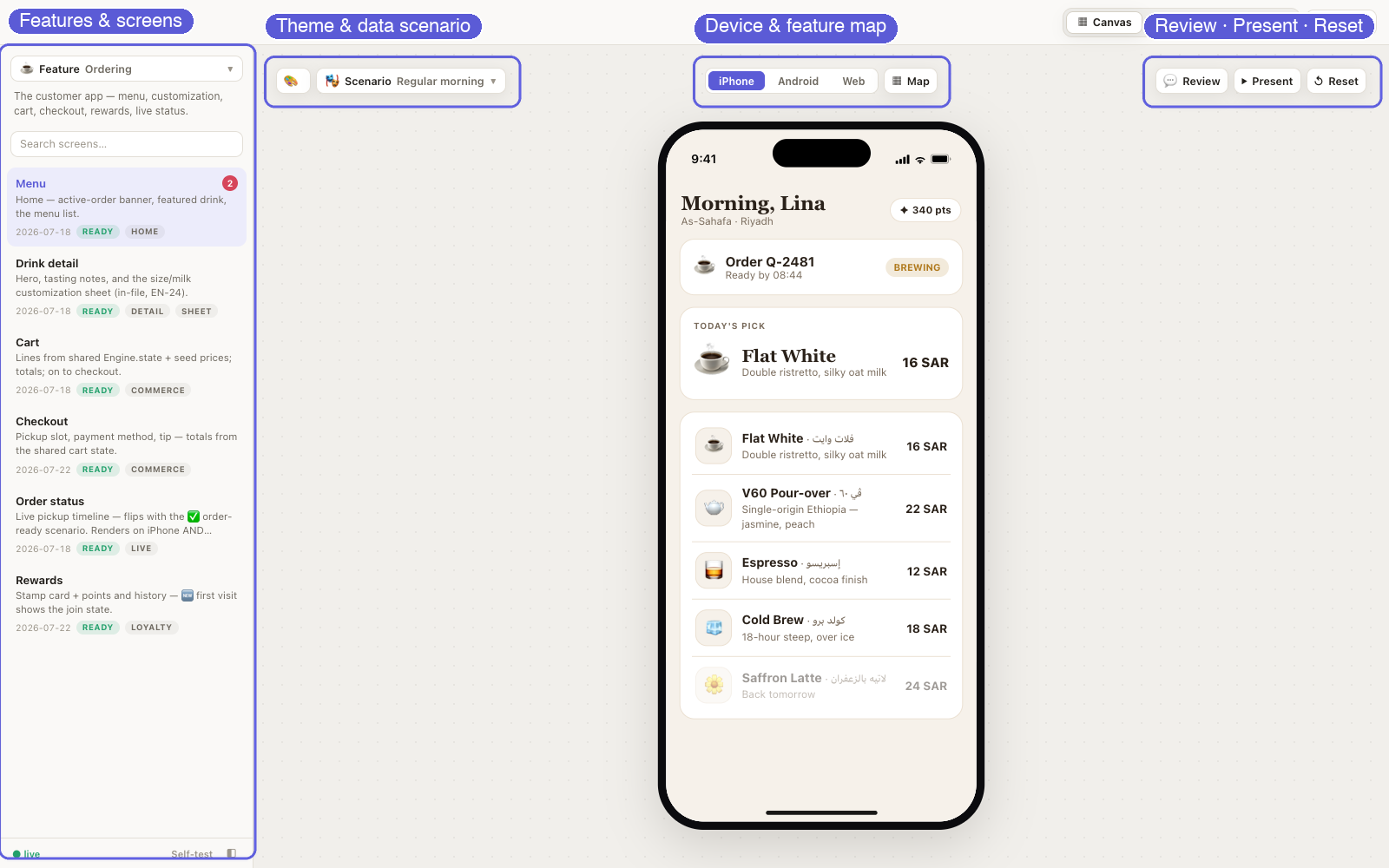
At a glance: features & screens live in the sidebar (with open-comment count badges) · the canvas strip leads with how the screen renders (theme, scenario, language) · the device picker and feature map sit centered · Review, Present and Reset trail on the right — and the top bar carries the Canvas / AI Image Playground switcher beside the color-mode selector.
Top bar
| Control | What it does |
|---|---|
| Project name ▾ | The project switcher. On a live screenbook serve, the name after ScreenBook.ai / is a menu of every active project on your machine (fed by the server registry) — the current one check-marked, each row showing its <slug>.localhost host. Click a row to switch studio; hover it for ↗ open in a new tab and ⎘ copy URL. Under a plain static server the name stays plain text. |
| ▦ Canvas | 🖼 AI Image Playground | The studio switcher, at the bar's trailing edge: the canvas (devices + screens) or the AI image playground. |
| ◐ Color mode | System / Light / Dark — System is the default and follows your OS live (flip macOS appearance and the studio flips with it). Picking Light or Dark pins it, and only a pinned mode travels in deep links. Tokens flip live, no reload; the studio chrome follows. |
Sidebar
⧉ Feature ▾ switches the active feature (one folder under features/ = one entry;
embedded apps appear here too) — features with open review comments carry a red count
badge in the menu. Below it: search (/ focuses it) and the grouped screen rows — title,
description, updated date, status pill, tags, and a red open-comment badge when the
screen has unresolved review comments. Clicking that badge jumps straight into Review
Mode, scoped to the screen. The ● live badge shows when the CLI server's extras are
active; the Self-test link runs the render matrix in your browser.
The sidebar and the docked panels (Theme Lab, Review) slide open and shut, and are resizable — drag the thin grip on their inner edge; double-click it to reset. Widths persist.
Keyboard: ↑/↓ or j/k moves between screens · ←/→ steps an active flow · Esc closes menus (or leaves the map).
The canvas strip
The controls above the stage, in three groups:
| Group | Control | What it does |
|---|---|---|
| Leading | 🎨 Theme Lab | Docked panel: every token of the active theme, editable live against the hosted screens — color pickers, Export JSON, Save to themes/<id>.json (under serve), Revert, theme switcher when several themes exist. |
| 🎭 Scenario ▾ | Applies a named data overlay from the feature's scenarios.json — empty states, mid-journey, edge cases. The screen reloads with the merged data. Embedded apps can expose their own scenarios here. | |
| 🌐 lang ▾ | Sets Engine.env.lang and reloads the screen so Engine.t strings rebind. Picking an RTL language flips direction automatically — this is the direction control (?dir=rtl still works in deep links). Hidden for single-language projects. | |
| Center | iPhone | Android | Web | The segmented device picker — one device is always active: the sidebar filters to it, multi-device screens re-frame to it, and segments gray out when the feature has no screens for that device. Picking a device hops to its first screen if the current one doesn't render there; navigating to another device's screen pulls the picker along. Hidden when the project declares one device (and for app features). |
| ▦ Map | The feature map (below) — the zoomed-out canvas of every screen and its links. | |
| Trailing | 💬 Review | Review Mode — the full section below. |
| ⏵ Present | Opens the presentation view in a new tab, carrying the exact current state — a clean, client-ready stage with auto-hiding controls. | |
| ↺ Reset | Resets the shared Engine.state store (the cross-screen KV) and reloads the screen. |
Review Mode
Turn on 💬 Review and the screen stays fully usable while you comment: left-click keeps working the prototype — buttons, links, flows — so you can walk through screens without ever leaving Review Mode. Right-click (two-finger click on a trackpad) is the comment gesture; the browser's own context menu is paused inside the screen while review is on and comes back the moment you leave it.
Leaving a comment. Right-click anywhere on the screen, write what should change,
Add comment (or ⌘/Ctrl-Enter). Each comment captures the full context — screen,
scenario, theme, mode, direction, device — plus the exact element under the cursor, so
it can be reproduced later precisely. Comments sign as git config user.name (offered
by serve, confirmed once on your first comment, editable in the panel header).
Attachments. Give a comment reference material: 📎 Attach in the composer, drop
files onto it, or paste a screenshot straight from the clipboard (⌘V). Images, PDF, MD,
TXT or JSON, 10 MB each — stored in your project at review/attachments/<comment-id>/
(needs the live serve; plain static hosting shows existing attachments but can't add).
Images render as thumbnails on the card and in the detail overlay — click to open full
size. Add more to a saved comment any time — 📎 Attach lives in the card's Edit
box and in the detail overlay too; the × (on composer chips, Edit-box chips, or overlay
thumbnails) removes one, and files nothing references any more are cleaned up
automatically.
Markers. Comments render as numbered red dots anchored to their element — they stay on their content while the page scrolls or the layout shifts. Resolved comments turn green. Clicking a dot focuses its comment in the panel.
The panel. Docked on the right, scoped by two tabs: This screen (default — follows along as you switch screens) or All screens in the feature. Open comments list first; resolved ones tuck into a collapsed Resolved (N) group. When you're scoped to one screen and others still have open comments, a "N open on other screens →" link widens the scope.
Opening a comment. A single click on a card opens its screen and restores the captured context — scenario, theme, mode, direction, device — while the marker pulses so you can spot it. A double-click opens the detail overlay: every stored field (where it's pinned, the captured context, the element anchor, reviewer and dates) plus the full action set — Update comment, Mark as resolved / Reopen, Delete, Open screen. Esc closes it.
Counts everywhere. Sidebar screen rows and the Feature ▾ menu carry red badges with each screen's / feature's open-comment count — a badge click is the fast lane into Review Mode scoped to that screen.
The agent loop. Agents read comments over MCP (get_review_comments — attachments
ride along as paths, readable with get_attachment), fix the screens, optionally attach
proof of the fix (attach_to_comment), and resolve_comment — and the open studio
updates live: badges drop, the panel refreshes, thumbnails appear, no reload. Synced to review/comments.json under serve; localStorage
otherwise. Export JSON downloads the set.
Flows
Flows (flows.json) play from deep links — ?flow=tour&step=2 — as a floating bar with
←/→, a step counter and the step's note; steps can pin scenarios, and arrow keys step.
Share the link, or present them from the ⏵ Present view.
Feature map
▦ Map in the canvas strip zooms out to the whole feature: every screen as a live
mini frame, connected by its real navigation. The edges come straight from the
screens — every literal data-go="…" / Engine.go('…') target is scanned into the
manifest's links at regen time, so the picture never drifts from the code.
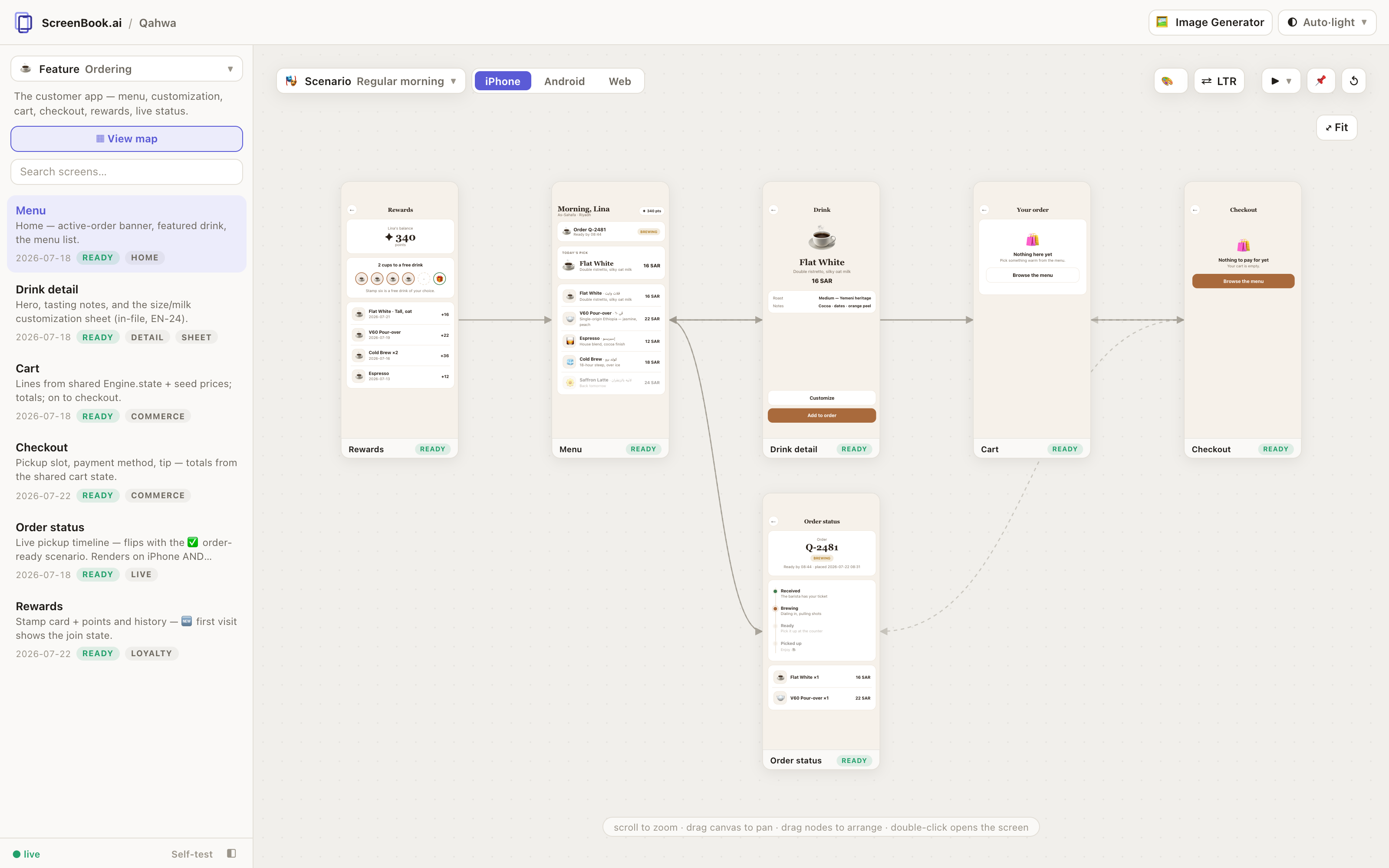
Scroll zooms, dragging the canvas pans, dragging a node rearranges it (saved to
features/<id>/map.json under engine serve, so agents and humans share the
layout). Click selects a node and lights up its connections; double-click opens
that screen in the studio; Esc leaves the map. The map follows the device picker —
one device's flow at a time — and ?map=1 deep-links straight into it.
A screen can also point at another feature with data-go="feature/screen"
(e.g. onboarding's last step → order/010-menu). Live screens really navigate
across, and on the map the link lands on a named feature card — click it to jump
to that feature's map.
Deep links
Everything is a URL:
#feature/screen?scenario=mid-trip&mode=dark&dir=rtl&lang=ar&theme=noir&flow=tour&step=2
Share a link and a stakeholder lands in the exact state — screen, data, theme, direction,
mid-flow. ?solo=1 renders just the framed screen (used by screenshot); ?selftest=1
runs the matrix.
Device variants, groups, transitions
Screens declaring "devices": ["ios","android"] get switcher chips above the frame —
one file, several frames, and the self-test covers each. Features declaring a "group" in
feature.json cluster under section headers in the Feature ▾ dropdown. Screen switches play
a subtle 180ms entrance — disabled automatically under prefers-reduced-motion, or
project-wide with "transitions": false in app.config.json.
Device frames
The engine draws the hardware — iPhone (island, status bar, home bar), Android (punch-hole,
gesture bar), browser chrome, or a bare card. Screens pad with var(--safe-top) /
var(--safe-bottom) and never draw hardware themselves. Full-bleed screens can force the
status-bar ink with "statusBar": "light" | "dark" in their meta. Frames scale to fit the
window. Embedded apps that draw their own chrome declare "chrome": "self" and get bezel
only.
Self-test
?selftest=1 — every screen × theme × light/dark × LTR/RTL must reach Engine.ready with
its meta present and zero console errors; embedded apps must register and survive a
visit to every screen they report. The same matrix runs headlessly via
screenbook validate — treat green as the definition of done.